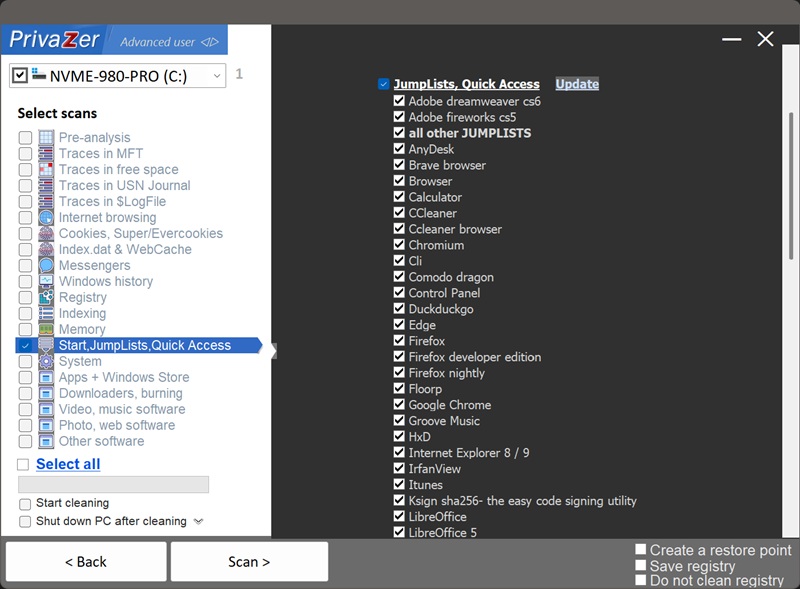
How to Clean Jump Lists (Taskbar Recent Items)?
Right-click a taskbar or Start menu icon (or hover, depending on your Windows version), and you'll see a Jump List: recently or frequently used items for that specific application, alongside anything pinned or any custom shortcuts the app itself defines, like "New Window" or "New Document".
This data is stored across two hidden folders per user:
- AutomaticDestinations (%AppData%\Microsoft\Windows\Recent\AutomaticDestinations) : recent and frequent items tracked automatically as you use each app
- CustomDestinations (%AppData%\Microsoft\Windows\Recent\CustomDestinations) : pinned items and tasks the application itself has defined
PrivaZer recognizes Jump Lists on a per-application basis, dozens of specific apps by name, browsers, media players, office suites, utilities, plus a catch-all for anything else, and this list is kept up to date as new applications are recognized.
Jump Lists reveal your recent files broken down by exactly which application opened them, which can be more organized and readable than a general history list. They're also unusually easy to stumble onto: no registry editor, no hidden folder digging, just a right-click on an icon someone already sees on your taskbar every day.
Yes. PrivaZer processes both hidden folders, per application, and removes the recent/frequent (MRU) entries, the files and folders Windows added on its own as you used each app. Files you've deliberately pinned, and any app-defined tasks, are left in place. Rather than simply deleting the timestamps tied to the removed entries, PrivaZer scrambles them, an extra layer that keeps any residual data from being useful for building an accurate timeline.
Instead of just deleting the timestamp values tied to Jump List entries, PrivaZer randomizes them. It's an extra precaution: even if some fragment of data were ever recovered, the scrambled dates prevent it from being used to reconstruct an accurate timeline of when things happened.
Yes. Clearing them doesn't affect your files, your installed programs or system stability. The only visible effect is that right-clicking a taskbar icon shows fewer, or no, recent items until you use that app again, while anything you've pinned or any app-defined tasks stay exactly as they were.
Yes, the next file you open in that app gets added right back to its Jump List. That's expected, ongoing behavior for a convenience feature. Run PrivaZer periodically to keep it short.
Select scans - Start, JumpLists, Quick Access - JumpLists