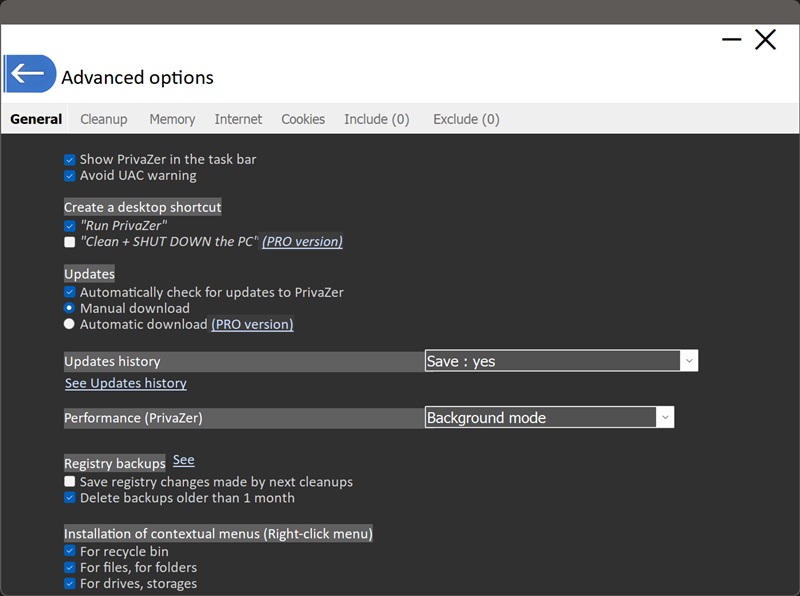
What Do PrivaZer's General Settings Do?
This controls whether PrivaZer's icon appears in the Windows taskbar while the program is running. Unchecking it keeps PrivaZer running the same way, it just won't show an icon there.
Cleaning many of the traces covered on this site requires administrator rights, which normally means Windows shows a User Account Control prompt asking you to confirm elevation. This option is designed to reduce how often that prompt interrupts you when running PrivaZer.
Two shortcuts can be created on your desktop:
- "Run PrivaZer" : a shortcut that simply opens the application
- "Clean + SHUT DOWN the PC"PRO : a one-click shortcut that runs a cleaning pass and then shuts the computer down automatically once it's finished, handy for a quick clean-and-leave routine
"Automatically check for updates to PrivaZer" controls whether the app periodically checks if a newer version is available. If checking is enabled, you then choose how new versions are handled:
- Manual download : you're notified an update exists, and you choose when to download and install it
- Automatic downloadPRO : updates are downloaded automatically without needing to confirm each time
This setting controls whether PrivaZer keeps a log of the updates it has installed over time. With saving enabled, you can review that log through the "See Updates history" link right below it.
This governs how much of the system's resources PrivaZer uses while scanning and cleaning. "Background mode" is designed to let a scan run without getting in the way of whatever else you're doing on the PC at the same time, useful for the more time-consuming scans, such as free space cleanup, where a scan can run for a long stretch.
"Save registry changes made by next cleanups" keeps a backup of any registry modifications PrivaZer makes during a cleaning pass, so those changes can be reversed later if something needs to be restored. "Delete backups older than 1 month" automatically prunes older backups so they don't accumulate indefinitely on disk.
These add PrivaZer entries to the Windows right-click menu in three places: the recycle bin, individual files and folders, and drives or storage devices. With these enabled, you can trigger a targeted clean directly from File Explorer's right-click menu, without needing to open PrivaZer's main window and navigate to it first.