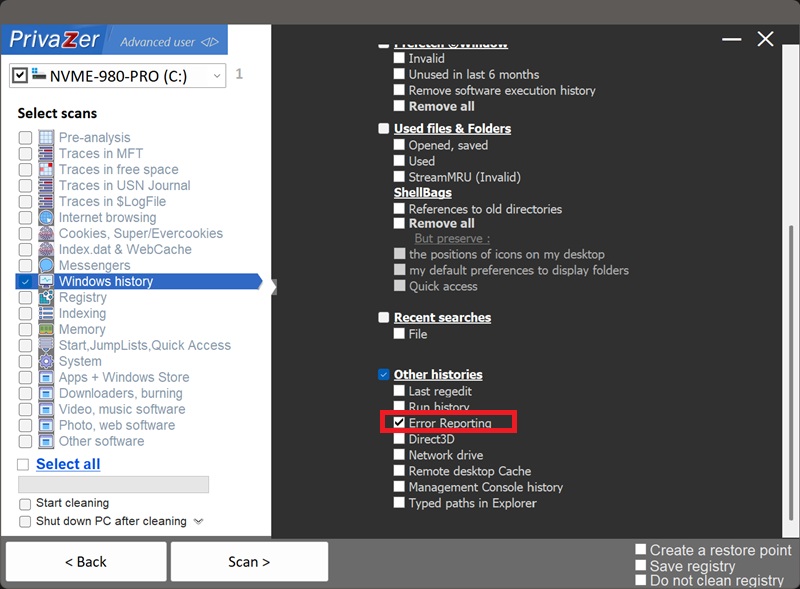
How to Clear Windows Error Reporting (.WER Crash Reports)?
Windows Error Reporting (WER) is the component that offers to send Microsoft a report whenever a program crashes, freezes, or the system itself faults. Whether or not you choose to send it, a local copy is kept as a .WER file, and it's one of the richest "evidence of execution" artifacts on Windows, available since Vista.
Windows stores these reports in up to four folders, two shared across all users and two specific to you:
- %ProgramData%\Microsoft\Windows\WER\ReportArchive
- %ProgramData%\Microsoft\Windows\WER\ReportQueue
- %UserProfile%\AppData\Local\Microsoft\Windows\WER\ReportArchive
- %UserProfile%\AppData\Local\Microsoft\Windows\WER\ReportQueue
| Field | What it reveals | Processing by PrivaZer |
|---|---|---|
| App path, name & version | Exactly which program, where it was installed | Removed |
| Crash timestamp | The precise moment it happened | Removed |
| Fault module & exception code | Technical detail on what went wrong | Removed |
| Loaded modules | Other components, sometimes other software, active at the time | Removed |
| OS version & edition | Details about the system itself | Removed |
Yes. PrivaZer removes the report folders from all five locations: the two shared ProgramData folders, the two per-user AppData\Local folders, and ElevatedDiagnostics. The shared, system-wide locations are cleared under the appropriate conditions (they're common to every account on the PC), while the per-user locations are always cleared for your account. It can target this on its own or as part of a full scan, no reboot is required.
Yes. Uninstalling the program that crashed doesn't remove its old crash reports. The full path, version, crash time and loaded modules can all still describe a program that's no longer on your PC. Cleaning Windows Error Reporting is what removes that leftover.
Yes. Clearing these reports doesn't affect your installed programs, your files or system stability, and it doesn't change whether WER itself keeps working going forward. The only visible effect is that your local crash history disappears from Windows' Reliability History / Problem Reports view until new crashes occur.
Yes, if an app crashes or hangs again, a new report is generated, that's WER doing its job. Cleaning only removes the historical record up to that point. Run PrivaZer periodically to keep it short.
Amcache, Shimcache and UserAssist tell you a program ran. Windows Error Reporting tells you it crashed or froze, and with far more technical depth: the exact fault location, the module responsible, and a full list of what else was loaded at the time. Nothing else on this site captures that level of runtime detail about a single moment.
For the general execution-trace side, see: Amcache, Shimcache and UserAssist.
Scan options - Other histories - Error Reporting