
How to Delete Prefetch Files on Windows?
The smart approach isn't to delete every prefetch file, it's to treat different files differently. In PrivaZer's Prefetch options, that means selecting the targeted actions rather than the blunt one:
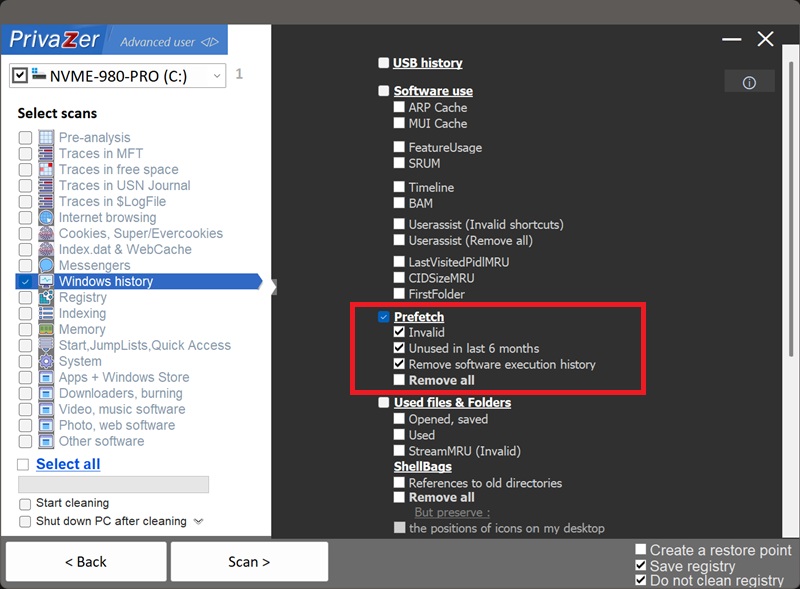
- Invalid, removes prefetch files left behind by programs that are no longer installed. Pure clutter, safe to delete.
- Unused in last 6 months, removes stale files for programs you haven't run in a long time.
- Remove software execution history, this is the clever one: for the programs you still use, it neutralizes the private usage data inside their prefetch files (last-run dates and launch count) while leaving the files in place, so Windows keeps benefiting from them.
- Remove all, deletes the entire Prefetch folder. We recommend leaving this unchecked: Windows just rebuilds the files, your next launches are slower, and an empty folder is itself a tell-tale sign of cleaning.
In short: remove what's useless (Invalid, Unused in last 6 months) and neutralize what's sensitive (Remove software execution history), without wiping what's useful. That's exactly the selection shown above.
| .pf file section | Data type | Processing by PrivaZer |
|---|---|---|
| File header | Signature, version, exe name, hash | Left intact (Structural) |
| File information block | Section offsets & counts | Left intact (Structural) |
| Last run times | FILETIME timestamps (up to 8) | Sensitive (Removed/Scrambled) |
| Run count | Number of times launched | Sensitive (Removed/Scrambled) |
| File metrics & trace chains | Referenced page records | Left intact (Structural) |
| Filename strings | Full paths of loaded files | Left intact (Structural) |
| Volume information | Serial number, creation time, directories | Left intact (Structural) |
A prefetch file is more than a launch shortcut, it's a small record of how you use each program. The two amber sections in the diagram above are what make it a privacy concern: the last-run timestamps and launch count reveal when and how often you ran an application. PrivaZer scrambles exactly these fields and leaves the structural sections (gray), including the filename and volume data, intact so Windows can keep using the file normally.
No, and that's intentional. Windows would simply rebuild them on the next launch, so deleting them achieves nothing except a slightly slower start. Instead of deleting them, PrivaZer neutralizes the private data they contain (see below).
Not their existence, what's inside them. Each .pf file quietly records when a program was last run and how many times it has been launched. That's a timestamped history of your activity, and forensic tools read it directly. The folder itself is harmless; the embedded dates are the giveaway.
Two reasons. First, Windows rebuilds the files immediately, so the "history" comes right back. Second, an empty Prefetch folder is abnormal, it's itself a visible sign that something was cleaned. You'd be swapping one trace for another, more suspicious one.
You get real privacy without the tell-tale signs of cleaning. The files stay in place, the folder looks completely normal, Windows keeps using them as intended, and yet the sensitive last-run and launch-count data is gone. Genuine privacy, no anomalies, no loss of performance.
It's tempting to switch prefetch off entirely for privacy, but that's the wrong trade-off, for two reasons.
First, you'd lose a real benefit. On modern Windows the prefetch files are used by the SysMain service as part of a strategy to make program startup faster, even on SSD hardware, mostly by making it easier to pre-load your frequently-used programs into RAM ahead of time, so launches and boot stay responsive. The old idea that prefetch is only useful on mechanical hard drives no longer holds: its role has shifted from reducing disk seeks to warming up memory, and that benefit applies to SSDs too. Turning it off gives up that smoothness for no privacy gain.
Second, it doesn't even achieve the privacy goal: it leaves that same abnormal empty folder, drawing attention rather than avoiding it.
PrivaZer's approach sidesteps both problems: prefetch keeps working normally, the folder looks completely ordinary, and the sensitive usage history inside the files is neutralized. You get the privacy without the downsides.
Quick setup via the Options menu
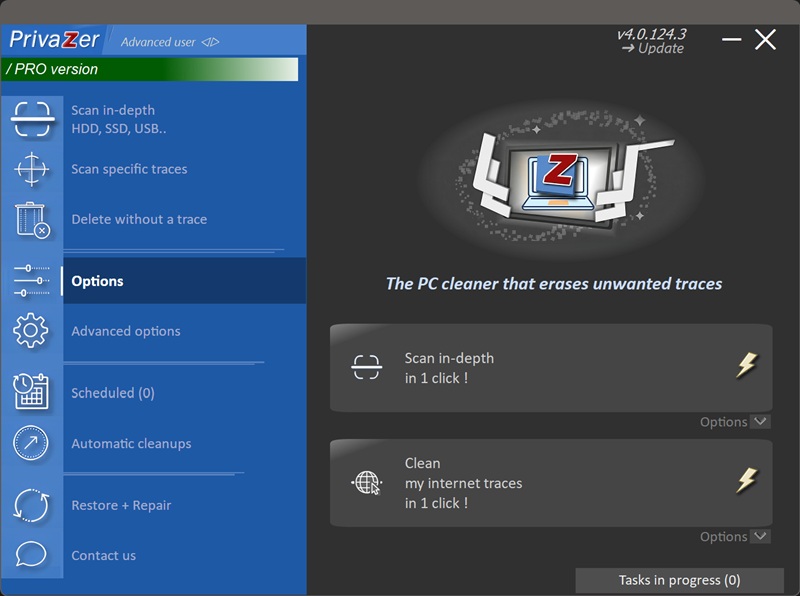
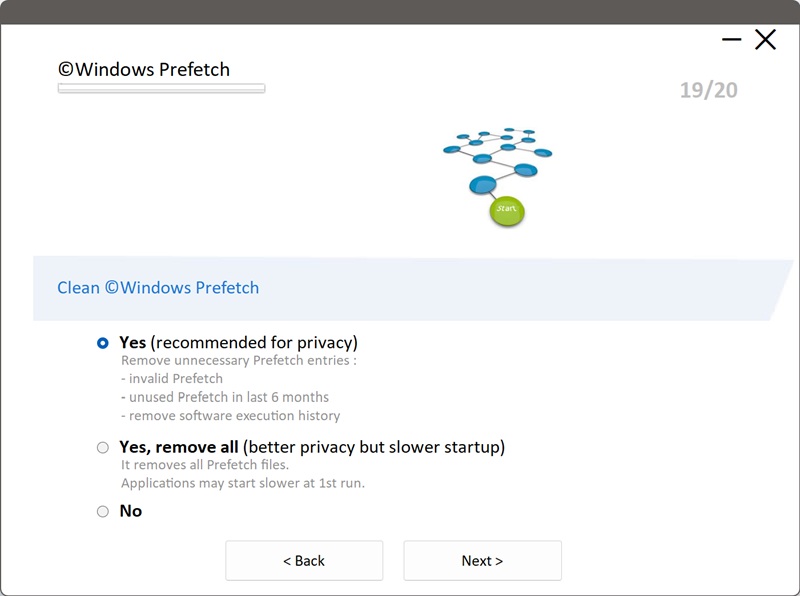
Scan options - Prefetch options