How to Clean Shellbags on Windows?
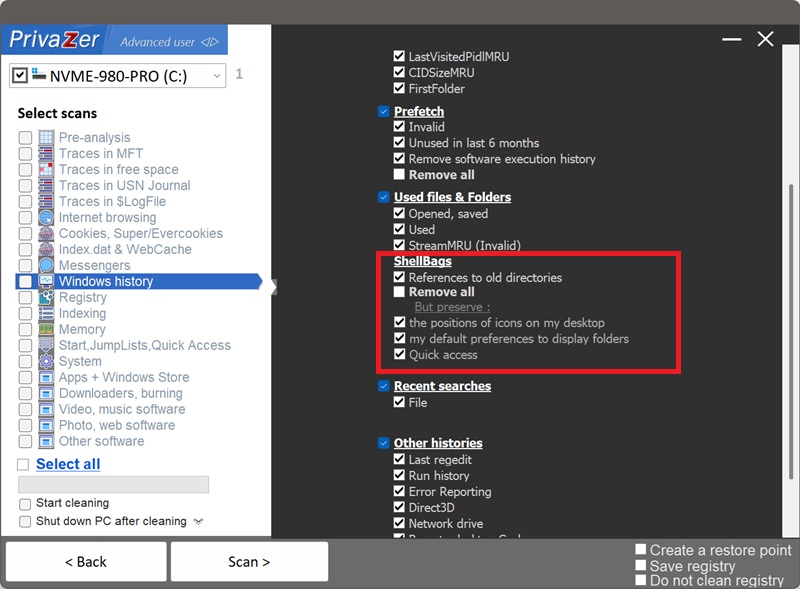
The smart approach isn't to wipe every shellbag, it's to match the cleanup to what you actually want gone. In PrivaZer's Shellbags options you get three choices:
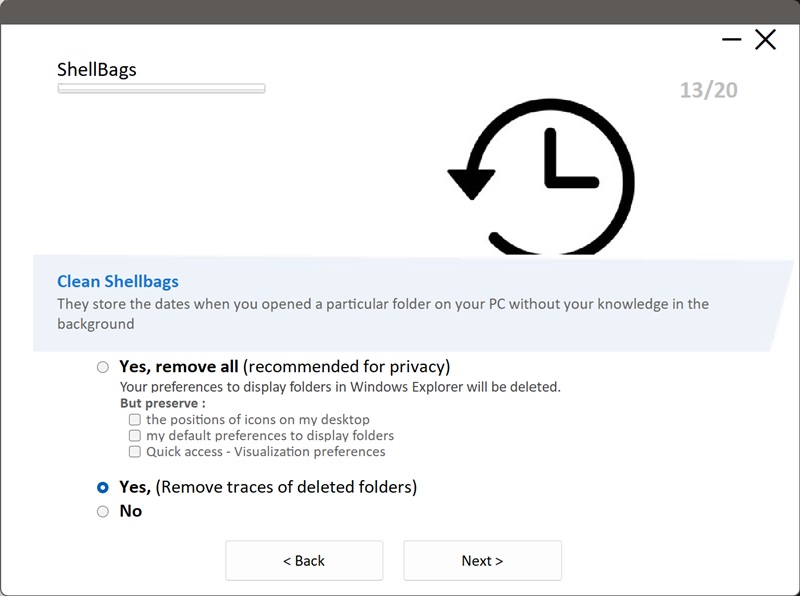
- Yes, remove all (recommended for privacy), clears the whole folder-navigation trail. Your Explorer view preferences reset to default. Use the But preserve checkboxes to keep your desktop icon positions, your default folder views, and your Quick Access display preferences.
- Yes, remove traces of deleted folders, the balanced default. It removes only the shellbag entries pointing to folders, drives, network shares or encrypted volumes that no longer exist, and leaves the view settings for the folders you still use untouched.
- No, skips shellbags cleanup entirely. Nothing is removed.
In short: Remove traces of deleted folders erases the forensic trail that matters most (gone drives and folders) with zero change to your everyday Explorer, while Remove all is the full reset. That's the balance shown above.
| Registry section | Data type | Processing by PrivaZer |
|---|---|---|
| MRUListEx | Recency order of opened folders | Removed (Privacy trail) |
| ShellItem type & target | Folder / drive / network / ZIP identifier | Removed (Privacy trail) |
| Folder name & path | Long name + 8.3 short name | Removed (Privacy trail) |
| Timestamps & MFT reference | Created / modified / accessed dates, NTFS entry number | Removed (Privacy trail) |
| NodeSlot & view mode | Icons / list / details template | Kept or reset by choice |
| Icon positions, sort & columns | In-window layout | Kept or reset by choice |
| Window size & position | Explorer window geometry | Kept or reset by choice |
A shellbag isn't a single value, it's two linked structures. The four amber sections form the BagMRU tree: they record which folders you opened, on which drive or share, and when, complete with the folder's NTFS reference. That's what makes shellbags a favourite forensic artifact, they outlive the folder, the USB stick or the encrypted volume they point to. The gray sections are the Bags key: purely cosmetic view preferences. PrivaZer removes the BagMRU trail and leaves the Bags view settings intact, or resets them only if you ask.
Yes, but it's your choice. With Remove traces of deleted folders, entries for folders that still exist are left untouched, so their view preferences stay. With Remove all, everything is cleared, including current folders; Windows then rebuilds fresh shellbags with default views as you browse. Either way, nothing about your files is affected, shellbags only store display preferences and navigation history.
Not the view settings, what's recorded alongside them. Every folder you open in Explorer leaves a BagMRU entry holding the folder's path, its type (local, removable, network, encrypted), embedded created/modified/accessed dates, and its NTFS reference. It's a timestamped map of where you browsed, and forensic tools read it directly. The cosmetic view data is harmless; the navigation trail is the giveaway.
Yes, and that's exactly why they matter. A shellbag entry can outlive the folder itself, a disconnected USB or external disk, an unmounted network share, and a dismounted encrypted volume (VeraCrypt, BitLocker). An examiner can use it to prove that a specific user navigated to a specific folder on a device that no longer exists on the machine. That's the trail Remove traces of deleted folders is built to erase.
You get the privacy that matters without disturbing your everyday setup. The entries for gone drives, folders and volumes, the ones forensics care about most, are erased, while the folders you still use keep their familiar view. No reset, no surprises, just the sensitive trail gone.
No. Shellbags store only cosmetic preferences, so cleaning them never touches your files, your folder structure or your system stability.
After Remove all, folders simply open with Windows default views again, and Windows rebuilds new shellbags as you browse. This is a reset, not a lost feature: the next time you set a folder to a preferred view, that new preference is saved as normal.
With Remove traces of deleted folders, even that reset doesn't happen: only the entries for folders and drives that are already gone are removed, so nothing you currently use changes at all.
Either way you keep the privacy benefit with no downside: no broken views, no instability, and no navigation trail left behind for forensic tools to read.
Quick setup via the Options menu
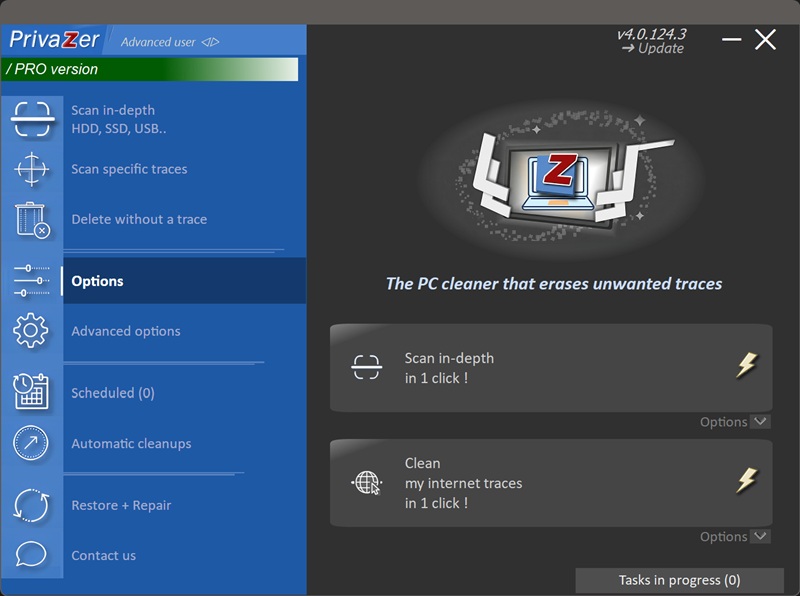
Scan options - Shellbags options