
How to Delete BAM Traces on Windows?
In PrivaZer, cleaning BAM traces is straightforward. Under Windows history > Software use, simply check the BAM option:
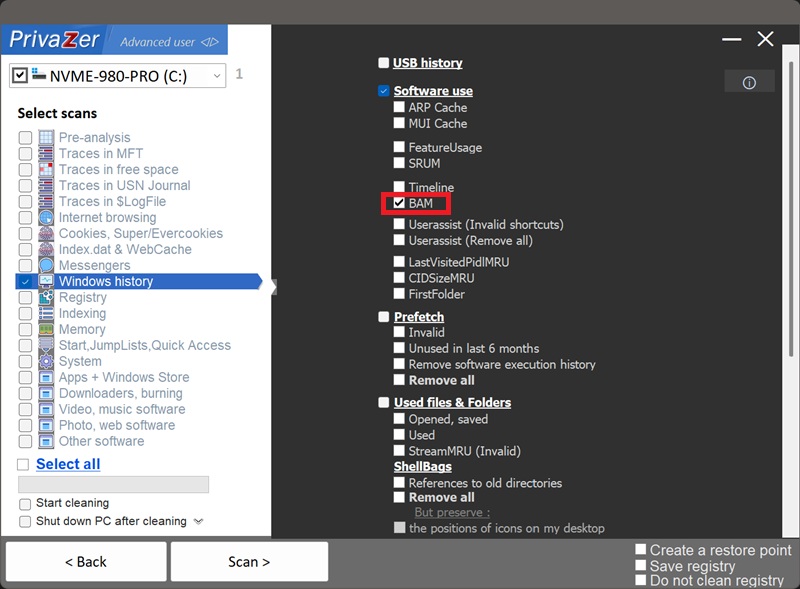
When you run the cleanup, PrivaZer safely accesses and completely deletes the locked User SID key (HKLM\SYSTEM\CurrentControlSet\Services\bam\State\UserSettings\{SID}) along with all the execution history stored inside it.
Why is this special? Windows actively locks this key while the operating system is running to prevent tampering. However, PrivaZer utilizes system-level privileges to securely bypass this lock. It successfully deletes your entire SID subkey and its privacy-sensitive contents (executable paths and timestamps), ensuring your activity history is wiped. Windows will simply recreate a fresh, clean SID key the next time it requires it, avoiding any system instability.
| BAM Registry Component | Data type | Processing by PrivaZer |
|---|---|---|
| Service Root (State) | Key structure, security descriptor | Left intact (Structural) |
| UserSettings Key | Parent key for user records | Left intact (Structural) |
| User SID Subkey | User account mapping identifier | Deleted entirely to clear all traces |
| Executable Value Names | Full file paths of run software | Deleted (wiped along with SID key) |
| Last Execution Timestamp | 64-bit FILETIME binary value | Deleted (wiped along with SID key) |
| Sequence & Control Flags | Internal kernel state bits | Deleted (wiped along with SID key) |
The Background Activity Monitor (BAM) is a kernel-level service introduced in Windows 10 and present in Windows 11. It logs full paths of executable files whenever they launch, paired with a 64-bit FILETIME binary payload that stores the exact time of last execution. Forensic examiners inspect this registry key (under HKLM\SYSTEM\CurrentControlSet\Services\bam\State\UserSettings) to determine precisely when programs—even portable or uninstalled applications—were run on your system. Because PrivaZer deletes your entire user SID key, all nested data is wiped completely.
Because Windows actively locks the BAM subkeys to protect them from user interference. If you try to delete your SID key manually using standard Regedit privileges, you will receive an 'Access Denied' error. Attempting to force-take ownership or blindly deleting the root BAM keys can lead to system instabilities.
PrivaZer automatically uses its elevated privileges to bypass this lock and cleanly remove your specific SID key. This gives you privacy without the hassle of manual registry permissions management, and allows Windows to harmlessly recreate a fresh, clean SID key on its own schedule.
Disabling the Background Activity Monitor service (via bam.sys driver configuration) might seem like an easy way to stop activity tracking, but it comes with significant drawbacks.
First, BAM is integrated into Windows power management and background activity throttling (particularly for modern UWP and desktop apps). Disabling it can disrupt push notifications, power efficiency routines, and background task management on modern laptops and desktops.
Second, disabling the service leaves existing historic BAM entries completely intact in the registry while creating a clear signal that system monitoring was intentionally tampered with.
PrivaZer's approach offers the best of both worlds: Windows power management and background services function normally, while historic and private execution records are safely wiped by deleting the SID key.
Scan options - BAM option