PrivaZer Cleanup Settings Explained (Secure Deletion Standards)
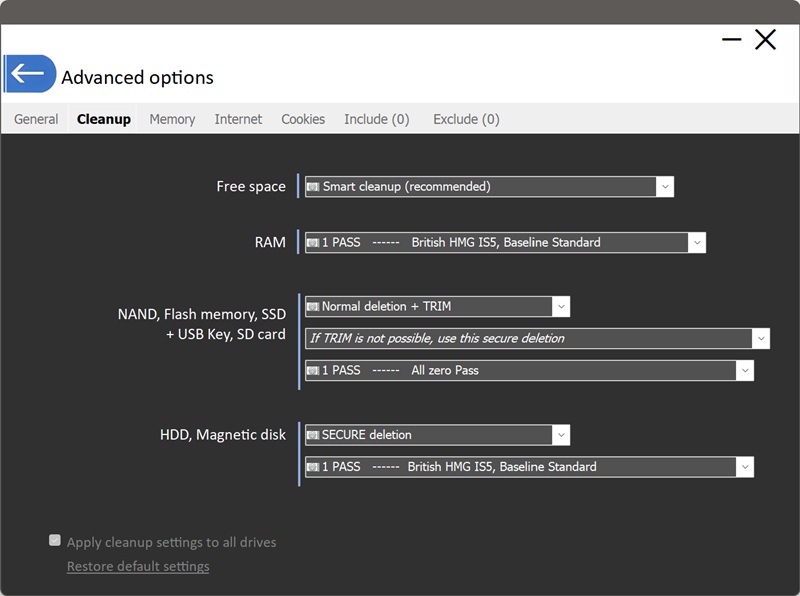
This controls how thoroughly PrivaZer works through your drive's free space during free space cleanup:
- Smart cleanup (recommended) : faster, an optimized method that only examines and overwrites free sectors that actually contain residual traces and haven't already been reset to zero
- Normal cleanup : slower, cleans the entire free space regardless of whether a given sector already contains traces or has already been zeroed
For most people, Smart cleanup gets the same practical result in a fraction of the time, since it skips sectors that don't need any work.
Each type of storage behaves differently at the physical level when data is erased, so a single one-size-fits-all setting wouldn't make sense:
- RAM : volatile memory, relevant mainly for things like memory dumps that get written to disk
- NAND, Flash memory, SSD, USB keys, SD cards : support TRIM and use wear-leveling, so overwriting doesn't guarantee erasure the same way it does on a traditional hard drive
- HDD, Magnetic disk : overwriting a specific location genuinely erases what was physically stored there
TRIM is a command SSDs support that tells the drive which blocks are no longer in use, so the drive's own controller can erase them, often more effectively than an external overwrite could, given how SSDs manage data internally.
The main dropdown for NAND/Flash/SSD offers:
- Normal deletion : a standard delete, no overwriting, no TRIM sent
- Normal deletion + TRIM : no overwriting technique is used, but a TRIM command is sent; when TRIM succeeds (SSD only), the data is securely erased and cannot be recovered
- SECURE deletion + TRIM : combines an overwrite pass with a TRIM command
- Normal deletion : a standard delete with no overwriting technique
- SECURE deletion : an overwriting technique is used so the data is securely erased and cannot be recovered
Because TRIM doesn't apply to traditional magnetic drives, this overwrite-based approach is how secure erasure works for HDDs.
Not perfectly reliably, no. TRIM only marks blocks as free, it's the SSD's own internal garbage collector that actually goes back and erases them, in its own time, in the background. That process doesn't always run immediately or completely, so in practice, some residual data can still linger on a TRIM-capable drive for longer than expected, even though TRIM is technically active.
A "pass" is one complete overwrite of the target data with a specific pattern, all zeros, or a sequence defined by a recognized data sanitization standard. Some government and military standards call for multiple passes with different patterns in sequence. PrivaZer offers a range of them:
| Passes | Standard |
|---|---|
| 1 | All zero pass |
| 1 | British HMG IS5, Baseline Standard |
| 2 | USA-AF AFSSI 5020 |
| 2 | Russian GOST P50739-95 |
| 3 | British HMG IS5, Enhanced Standard |
| 3 | USA Navy NAVSO P-5239-26 |
| 3 | USA DoD 5220.22-M, Department of Defense |
| 3 | NISPOMSUP Chap 8, Sect. 8-501 |
| 3 | German Federal Office for Information Security |
| 4 | NSA Manual 130-2 |
| 5 | IREC (IRIG) 106 |
| 6 | USA-Army 380-19 |
The full list continues further for hard drives, including standards from additional countries and agencies.
Multi-pass standards mostly date back to an era of older magnetic storage, when it was thought that faint residual traces might survive a single overwrite and be recoverable with specialized lab equipment. For most modern hard drives, and especially for SSDs where TRIM and wear-leveling change the picture entirely, a single all-zero pass is generally considered sufficient by contemporary security guidance, which is why it's PrivaZer's own recommended default.
The additional standards remain available for situations where a specific compliance requirement, a government contract or an organizational policy, calls for a named standard by name.
If you're subject to a specific compliance requirement that names a particular standard, choose that standard directly from the relevant dropdown.